

When files vanish from the C drive, most PC gamers feel the loss twice: first as a computer problem, then as a gaming problem. A deleted folder might contain a game save, a mod profile, OBS recordings, screenshots from a long raid, launcher configuration files, or a text document with trade notes and build plans. The correct response is not to click around randomly or reinstall everything. The safest response is to slow down, identify what disappeared, and recover files in an order that avoids overwriting recoverable data.
This guide explains how Windows players can respond when C drive files go missing. It is written for beginners and intermediate users who want practical steps, not panic. The goal is simple: preserve what may still be recoverable, check the locations where game and system files commonly move, and use recovery tools only after the drive is protected from extra writes.
Why C Drive File Loss Hits PC Gamers Differently
For many players, the C drive is more than the Windows drive. It often holds Steam, Epic Games Launcher, Battle.net, Riot Client, Xbox app data, browser downloads, documents, save folders, shader caches, screenshots, video captures, and mod managers. Even when the main game library lives on another drive, Windows user folders and AppData still sit on C by default.
That matters because game-related files are scattered. A save may be in Documents, AppData, Saved Games, ProgramData, or a cloud sync folder. A screenshot may be in Videos, Pictures, a launcher folder, or a game-specific directory. A missing C drive folder can therefore feel like several different losses at once.
The first rule is to avoid making the situation worse. If a file was deleted, Windows may only remove the file record while the data remains on the disk for a while. New downloads, game updates, Windows updates, screen recordings, browser caches, and even installing recovery software can overwrite those sectors. The sooner you stop writing new data to C, the better your chances become.
Common Reasons C Drive Files Disappear
Files do not always disappear because someone pressed Delete. Sometimes Windows moves them, hides them, or replaces a profile path after an update. A player may think a save file is gone when the game has simply switched from local saves to cloud saves, or when a launcher rebuilt its folder after a repair.
Accidental deletion is still the most common cause. Cleaning the Downloads folder, emptying Recycle Bin, removing old game folders, or using a third-party cleaner can erase files that looked temporary but were actually important. Large game folders also encourage quick cleanup decisions because they take so much space.
Windows updates can create another source of confusion. After a major update, some files may appear under Windows.old or a renamed user profile. OneDrive, Google Drive, and other sync services can also move Desktop, Documents, and Pictures into cloud-backed folders. If sync pauses or signs out, a folder can appear empty even though the files still exist online.
Drive health problems should not be ignored. If the C drive is unusually slow, makes strange noises, shows SMART warnings, or causes games to crash while loading assets, stop using the computer and copy important files to another device if possible. Recovery steps for a physically failing drive are different from recovery steps for a normal accidental deletion.
First Moves Before You Try Recovery Software
The first few minutes matter. Do not install a large game, download updates, record gameplay, or move files around on C. If possible, use another computer or your phone to read instructions while the affected PC stays idle. If you need a recovery tool, install it on another drive or use a portable option from a USB drive when available.
Next, write down exactly what is missing. Is it a whole folder, one save file, a capture folder, a mod list, or a document? Note the approximate path if you remember it. Examples include C:\Users\YourName\Documents, C:\Users\YourName\AppData\Local, C:\Users\YourName\Videos\Captures, and C:\Program Files. Recovery is easier when the target is specific.
Also check whether the file was recently opened. Many games, launchers, and creative tools keep recent file lists. Windows Search, Quick Access, Steam screenshots, Xbox Game Bar captures, and OBS output settings can reveal the last known location. Sometimes the fastest recovery is not scanning the whole drive; it is finding the folder where the file was moved.
Where to Look Before Running a Deep Scan
Start with the simple locations. Recycle Bin should be checked first if deletion was recent. Restore files from Recycle Bin only when you trust the original path; if you are unsure, copy the file to another drive instead of restoring blindly.
Then check cloud and launcher sync. Steam Cloud, Epic cloud saves, Xbox cloud saves, OneDrive, Google Drive, and Dropbox may hold older versions. If your game supports cloud saves, open the launcher settings before launching the game again. Launching too quickly can sometimes sync an empty or newer local state over an older cloud state.
Windows.old is worth checking after major Windows updates. Look under C:\Windows.old\Users\YourName for Desktop, Documents, Pictures, Videos, and AppData paths. If the missing files are there, copy them to another drive first, then place them back only after confirming they open correctly.
For game-specific files, search by file extension or folder name. Save files may use extensions like .sav, .save, .dat, .json, .ini, .cfg, or game-specific formats. Screenshots are usually .png or .jpg. OBS recordings may be .mkv or .mp4. Mod manager profiles may include .xml, .json, or profile folders.
Recovery Paths by File Type
| Missing item | Likely C drive location | First action | Safe recovery note |
| Game save | Documents, Saved Games, AppData, ProgramData | Check cloud save status and local save folder | Back up the current folder before replacing files |
| Screenshot | Pictures, game folder, Steam userdata, launcher folder | Search for .png and .jpg by modified date | Recover to another drive, then sort by thumbnail |
| Recording | Videos, Captures, OBS output folder | Check Xbox Game Bar and OBS settings | Do not record more video until recovery is done |
| Mod profile | AppData, Documents, mod manager folder | Find profile or config files | Restore gradually to avoid version conflicts |
| Build notes | Desktop, Documents, Downloads, browser sync folder | Check Recycle Bin and cloud versions | Recover older copies if the newest file is damaged |
How to Scan the C Drive Safely
If the file is not in Recycle Bin, cloud storage, Windows.old, or another known folder, a recovery scan is the next reasonable step. The important detail is where the tool runs and where recovered files are saved. Do not recover files back to the same C drive. Use an external drive, a second internal drive, or a large USB drive as the destination.
For deleted files on a healthy Windows system, a recovery tool PandaOffice Drecov can scan the file system and search for recoverable records. If you need a step-by-step reference while choosing a workflow, this guide on how to recover deleted files on Windows explains the general recovery process and can help you avoid writing recovered data back to the wrong place.
Use a quick scan first when the deletion was recent. Quick scans are faster and may preserve folder names better. If nothing useful appears, run a deeper scan. Deep scans take longer and may recover files without their original names, but they can find data after formatting, partition changes, or file system damage.
Preview files before recovering when the tool allows it. A preview is not perfect proof, but it can save time and storage. For photos, videos, documents, and some save files, successful preview suggests that the file structure is still readable. If a file previews incorrectly or shows zero bytes, recover it anyway only if it is important enough to test later.
What To Do After Recovery
Once files are recovered to another drive, open copies instead of moving originals immediately. Test save files in a safe way. For games, back up the current save folder before replacing anything. Then copy one recovered file or folder into the expected path and launch the game. If the game creates multiple autosaves, keep versions separated until you know which one works.
For screenshots and recordings, check file integrity before deleting anything else. Open images at full size. Play videos from the beginning, middle, and end. Large video captures can look normal in the folder but fail halfway through playback if only part of the file was recovered.
For configuration files and mods, compare dates and file sizes. A recovered mod profile might be older than the current game patch, so restoring it blindly can cause crashes. Copy it into a backup folder first, then restore settings one piece at a time. If a mod manager has export and import features, use those tools instead of manually replacing every file.
How PC Gamers Can Reduce Future Data Loss
The easiest recovery is the one you never need. Keep game saves, screenshots, OBS output, and mod profiles out of a single fragile location when possible. If your C drive is small, move capture folders and large media libraries to another drive. Windows, game launchers, and recording tools all create background writes, so leaving free space on C also helps system stability.
Use cloud saves, but do not trust them as your only backup. Cloud sync protects against some local failures, yet it can also sync unwanted changes. For important games, keep a manual backup folder with dated copies. This is especially useful before reinstalling Windows, changing drives, installing heavy mods, or joining a new league or season.
PC gamers understand this better than most because save folders, gameplay clips, screenshots, and third-party tool settings can matter as much as the game client. If the missing files came from a normal cleanup, start with a practical computer file recovery checklist. If you already emptied Recycle Bin, follow a focused Recycle Bin recovery guide. For large gameplay captures, use a separate Windows video recovery workflow so you do not overwrite the footage while trying to bring it back.
A weekly backup does not need to be complicated. Copy Documents, Saved Games, Pictures, Videos, and important AppData folders to an external drive. Keep at least one backup disconnected when not in use. If ransomware, drive failure, or accidental deletion hits the active system, a disconnected copy gives you a cleaner recovery point.
Final Checklist
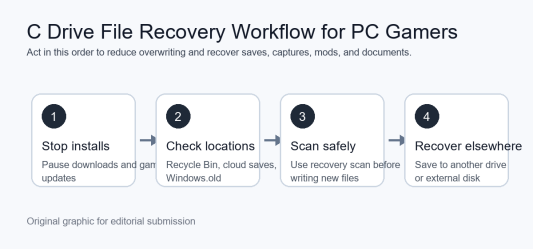
If C drive files go missing, do not keep using the drive normally. Pause game updates, downloads, recording, and cleanup tools. Check Recycle Bin, cloud saves, Windows.old, recent-file lists, and known game folders. If those checks fail, scan the drive carefully and recover files to another storage device.
Most importantly, treat recovery as a sequence, not a scramble. The order matters: protect the drive first, locate likely paths second, scan third, and restore only after you have safe copies. That approach gives PC gamers the strongest chance of getting back saves, screenshots, recordings, documents, and configuration files without turning a recoverable deletion into permanent data loss.

Jennifer R. Povey is a freelance game writer and editor specializing in narrative design, game content, and fiction editing. She crafts immersive stories and sharp dialogue that bring interactive worlds to life. She works directly with clients—no outsourcing, no referrals—ensuring quality and consistency in every project.